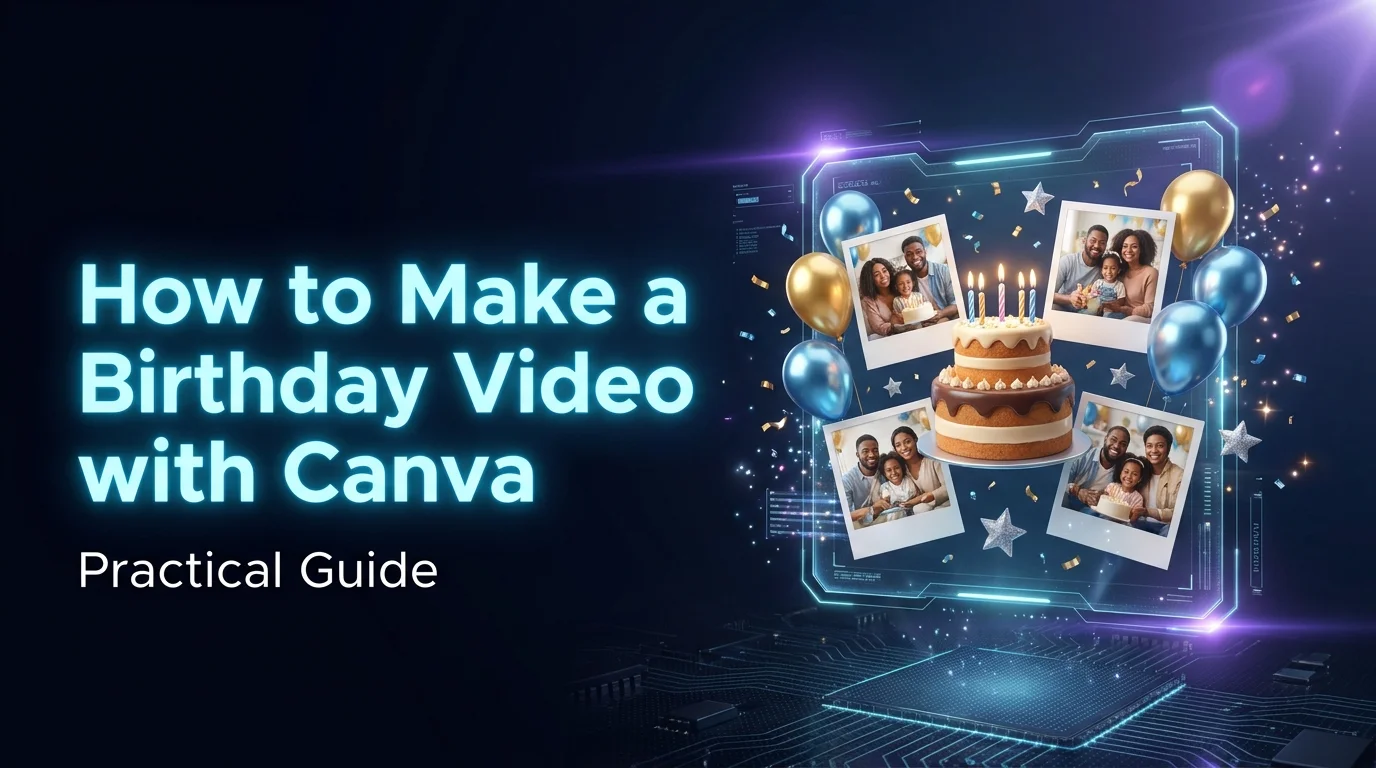
Quick summary up front — skip the long intro and jump straight to the guide that will teach you how to make a birthday video with Canva. Not a boring slideshow, and not a project that eats up your whole week. Something practical and good that, in my opinion, anyone can pull off.
I used to rely on Canva constantly for work — there wasn't a single day I didn't open it. And even though I felt like I knew the tool well, I was always aware there were plenty of interesting options I hadn't gotten around to exploring. But there's a lot there, and who has time to dig into everything.
Over the past year I've drifted away from Canva quite a bit, mostly because my career took a turn and became focused on creating AI videos and automation workflows. But while Canva and I grew apart, Canva didn't stay in the same place — it kept updating and updating.
And by the way, that's one of the things I actually like about Canva as a company — they're very responsive to what users need, and they keep adding the features we all wished for. I wish I could say the same about Fiverr, where every attempt I've made to get support has ended in disappointment.
This week, when my card got charged for another year of Canva subscription, I decided to log in and see what was new. Honestly, my eyes glazed over — a wall of a million new things. It looks like by the time you finish learning everything that's there, half of it will already be outdated. Yes, you're witnessing the FOMO of an AI video creator, and honestly of anyone working with AI, trying to keep up with a world that changes completely every other day. If that sounds familiar, you'll find more roundups like this in our guides section.
Making a Birthday Presentation with Canva Has Never Been This Easy
It's nothing new that you can put together a slick presentation with Canva. Canva has always offered tools for combining photos, video, text, audio and various effects. And if you had real creativity plus a good grasp of the tools, you could make genuinely impressive things.
So what's changed? Creativity is still valuable, but if you don't have much of it, you can basically outsource it to Canva, and the result isn't bad at all. And time-wise, Canva will handle it while you go grab coffee, answer emails, or call your grandkids. And even though everything happens automatically, you still get plenty of customization options.
Now, after all that talking, it's time to explain how you actually make a birthday presentation with Canva. And of course this isn't just for birthdays — it works for pretty much any occasion where you want a presentation built from photos.
How to Make a Birthday Presentation with Canva — A Practical Guide
The first step is gathering the photos. Honestly, for a lot of people this is one of the hardest parts. When it's someone we love, we usually have countless photos and it's hard to choose the best ones. It's completely normal to have 10,000 photos sitting on your phone. And if we're talking about people over 20, there's also a big batch of photos from digital cameras, from before the smartphone era. And if someone's over 30 — there are probably childhood photos that need scanning too.
My tip: don't go overboard with the number of photos. Look for shots from different ages, and from all the meaningful moments in life, and gather them together in one library.
Once you have the photos — upload them to Canva. Write the prompt you want, and within moments you'll get a few presentation options to choose from.
Here's a demo of the whole process on video:
To Wrap Up — My Recommendation
In my opinion, an AI video for a birthday is a bit more impressive than a standard presentation. But making videos — like growth videos — that are built from a lot of photos can turn into an expensive project. Though maybe combining a Canva presentation with a few AI touches can bring the cost down. And maybe you can even pull it off yourself.
And as always, Electric Puma is here if you need us. Whether you're after a birthday presentation for grandpa, a growth video for a bar mitzvah, or any other kind of AI video — that's exactly our world.
If you want to see more of what we do day to day, follow us on Instagram.
Questions and Answers
❓ How long does it take to make a birthday presentation in Canva?
It depends on how many photos you have and how much customizing you want to add, but broadly speaking it's a matter of minutes, not hours. Canva builds you an automatic first draft the moment you upload the photos and write the prompt — from there you're just polishing: reordering photos, swapping the music, adding a personal caption. That's the real difference between the Canva of a few years ago, which required you to build every slide yourself, and the Canva of today.
❓ Do you need a paid subscription to make the video?
Some of the newer features, like automatic presentation creation from photos, are available on the free plan too — but with Pro you get more templates, more effects, royalty-free music, and no watermark on export. If it's a one-off video for a family event, the free plan or a free trial will probably do the job. If you're planning to do this again and again, the subscription pays for itself.
❓ What do you do if you have too many photos and can't decide?
Don't try to cram everything in. Pick by this principle: one or two photos from every meaningful stage of life — childhood, teenage years, big events, recent years. That way you get a varied story without the video dragging on forever. If it's genuinely hard to choose alone, ask another family member to help sort — sometimes an outside eye is better at spotting the photos that actually tell a story.
You might also like
 Cool AI Video in 3 Min