.ai-post-hero{
padding:80px 20px;
background:#000;
}
.hero-inner{
max-width:1100px;
margin:auto;
display:flex;
flex-wrap:wrap;
align-items:center;
gap:40px;
}
.hero-left{
flex:1;
min-width:280px;
}
.hero-left h1{
font-size:42px;
line-height:1.2;
color:#fff;
margin-bottom:20px;
}
.hero-left h1 span{
color:#c084fc;
}
.hero-sub{
color:#ddd;
font-size:18px;
margin-bottom:20px;
max-width:400px;
}
.hero-right{
flex:1;
display:flex;
justify-content:center;
}
.video-vertical{
width:260px;
aspect-ratio:9/16;
border-radius:20px;
overflow:hidden;
box-shadow:0 20px 60px rgba(0,0,0,0.6);
}
.video-vertical iframe{
width:100%;
height:100%;
border:0;
}
.ai-content{
max-width:750px;
margin:60px auto;
color:#ddd;
font-size:18px;
line-height:1.6;
padding:0 20px;
}
.ai-tools{
display:flex;
flex-direction:column;
gap:20px;
max-width:700px;
margin:40px auto;
padding:0 20px;
align-items:flex-start;
}
.tool-card{
background:#111;
padding:18px 24px;
border-radius:12px;
color:#eee;
width:100%;
}
.ai-step{
max-width:750px;
margin:60px auto;
padding:0 20px;
}
.ai-step h3{
color:#fff;
font-size:24px;
margin-bottom:10px;
}
.ai-step p{
color:#ddd;
font-size:17px;
line-height:1.6;
}
.step-card img{
max-width:260px;
width:100%;
display:block;
margin:20px auto;
border-radius:12px;
}
.ai-result{
margin:80px auto;
color:#fff;
display:flex;
flex-direction:column;
align-items:center;
}
.ai-result h2{
color:#fff;
margin-bottom:20px;
}
.ai-link{
color:#c084fc;
text-decoration:underline;
}
Many times I see on social networks those animations that people often ask me about — where an image appears to break out of its own frame and interact directly with the feed itself, like a Facebook post or similar interface.
Today, I want to teach you how to create this effect. It’s pretty easy — a beginner to beginner-plus level technique.
Step 1 – Capture Your Feed
Take a screenshot of your Facebook (or any social network) feed using your phone or desktop.
Step 2 – Edit the Feed Image
Modify the account names, icons, and most importantly the image that will interact with the frame.
You can start from scratch or use a template and simply replace the content.
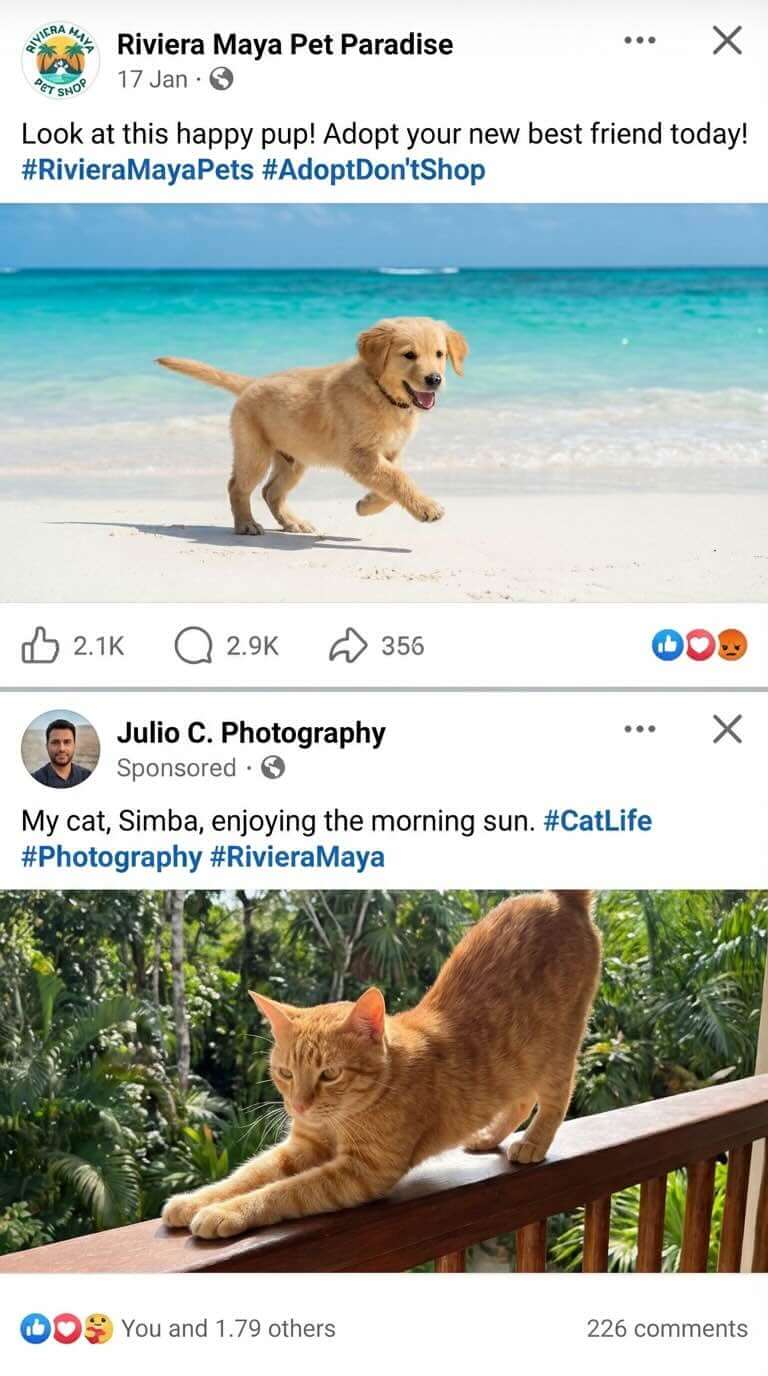
Step 3 – Upload and Animate Using JSON
Upload your edited image to Grok (single frame, no sound).
Instead of a regular prompt, use a JavaScript-based JSON script to control the animation.
You can download the JSON script here:
You can also paste this script into ChatGPT and explain what animation you want to create.
Providing your edited image as a reference will help the system modify the script accordingly.